- The lifespan of NAND Flash memory is limited, which causes irreversible write failures when its cycles are exhausted.
- Improper use, such as removing the device without system notification, is the primary cause of data corruption and RAW formatting.
- There are critical security risks involved in connecting memory devices of unknown origin or using them in unprotected public computers.
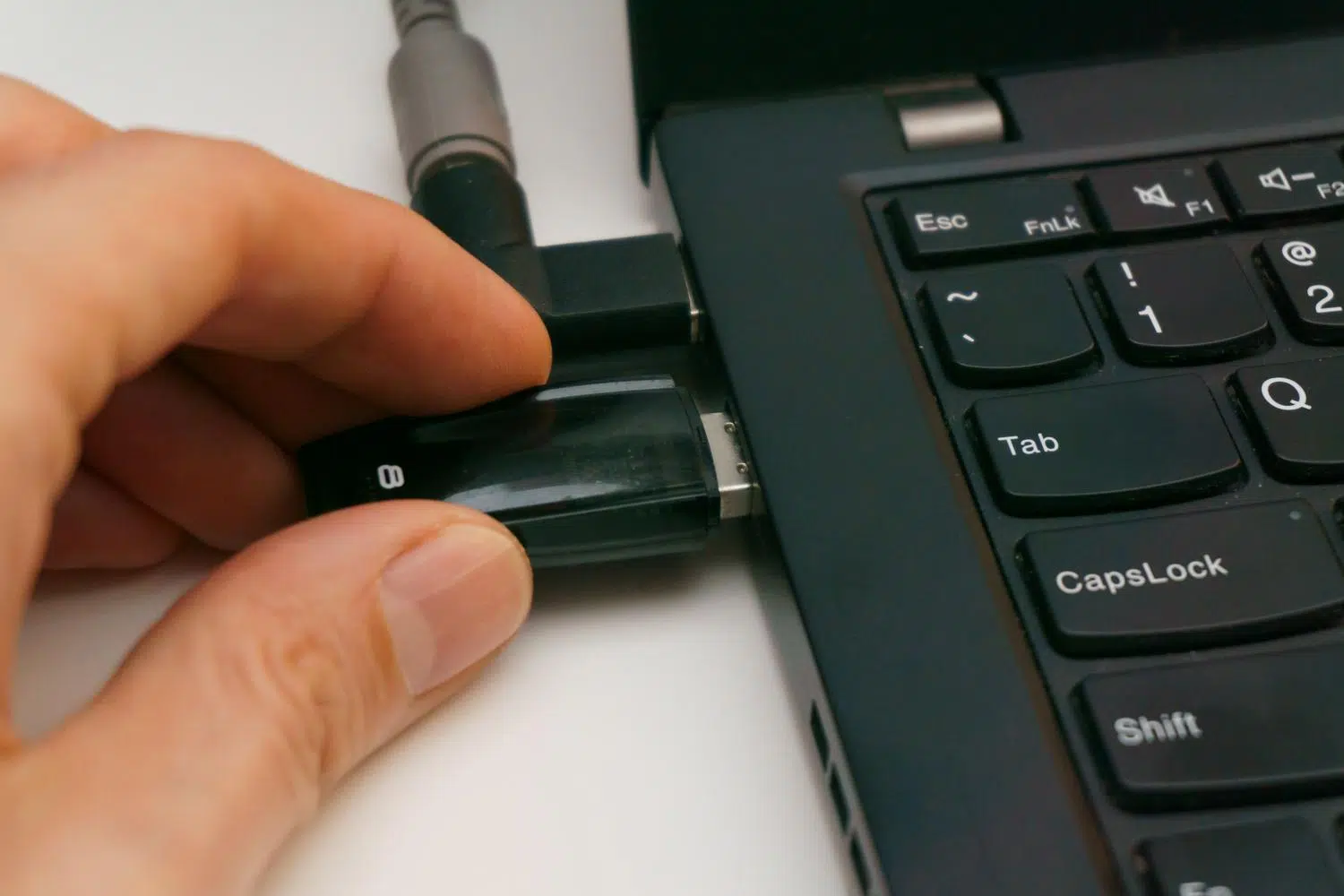
I'm sure it's happened to you: you need a file urgently, and when you plug in your USB drive, your computer decides to ignore it or gives you a cryptic error that leaves you bewildered. Although they seem like simple plug-and-play devices, USB drives are much more delicate than we think, and we often treat them as if they were indestructible.
The reality is that these drives aren't designed to be the ultimate storage for our digital lives, but rather for occasional data transfer between devices. Due to the quality of their controllers and the natural wear and tear of their cells, it's normal for them to eventually malfunction. Let's take a closer look at what typically fails and how you can try to salvage the situation.
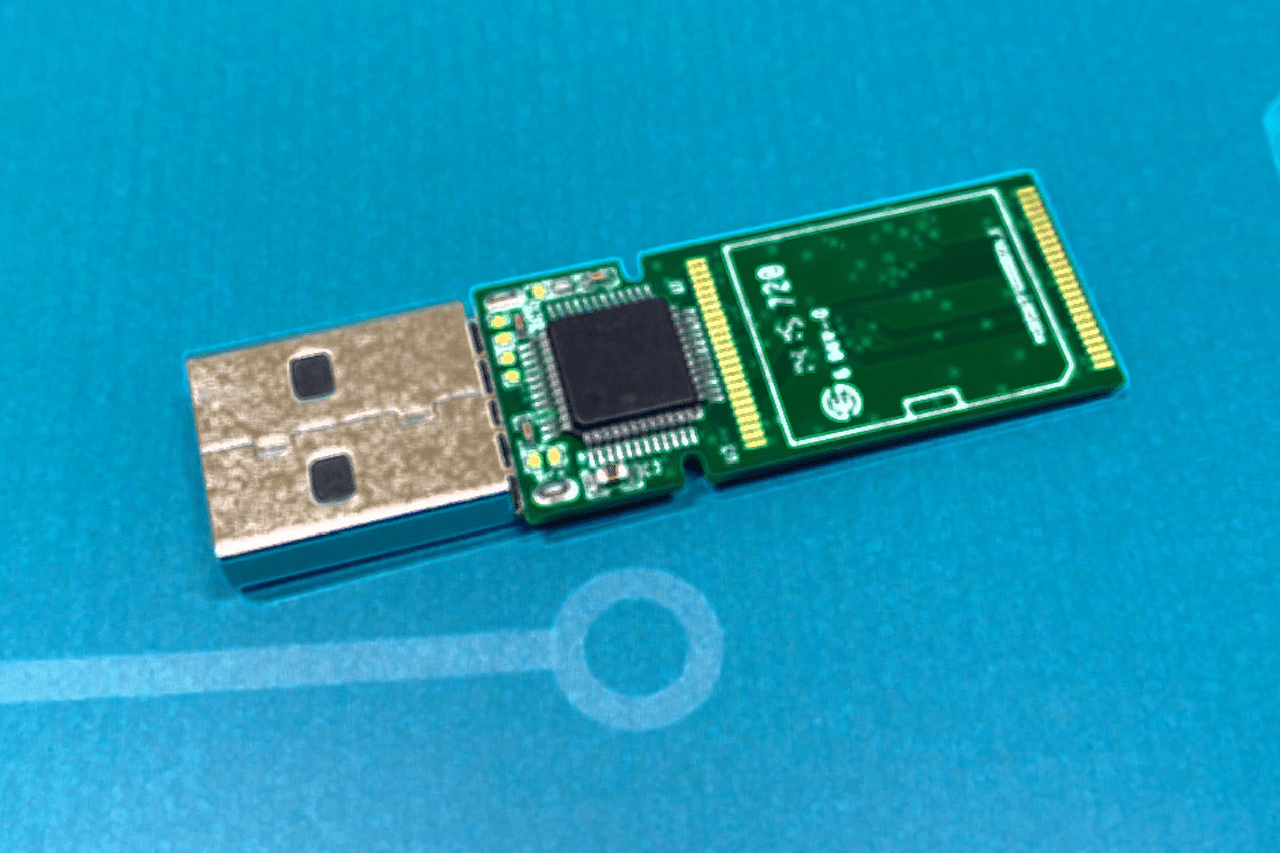
Hardware problems and physical wear and tear

One of the most frustrating failures is when the USB drive enters read-only or write-protected mode . If it's not due to a physical lock switch, it's most likely because the NAND flash cells have reached the end of their lifespan. When the controller detects that the memory can no longer write data safely, it locks the drive so that you can at least recover your information before the device fails completely.
On the other hand, it's common to encounter the dreaded cyclic redundancy check (CRC) error . This occurs when the system reads data that doesn't match the beginning of the file, which is usually a clear symptom of bad sectors . Although you can try to mitigate it by performing a full format (not a quick one) so that Windows marks those sectors as unusable, this is essentially just prolonging the agony of hardware that's already failing.
We also need to be careful with overheating and the environment . If you notice that the USB drive is burning hot to the touch, there could be an internal short circuit, and it's best to unplug it immediately. Furthermore, exposing the drive to moisture or strong impacts can render it unusable, so using protective cases is a very sensible idea.
Software and file system errors
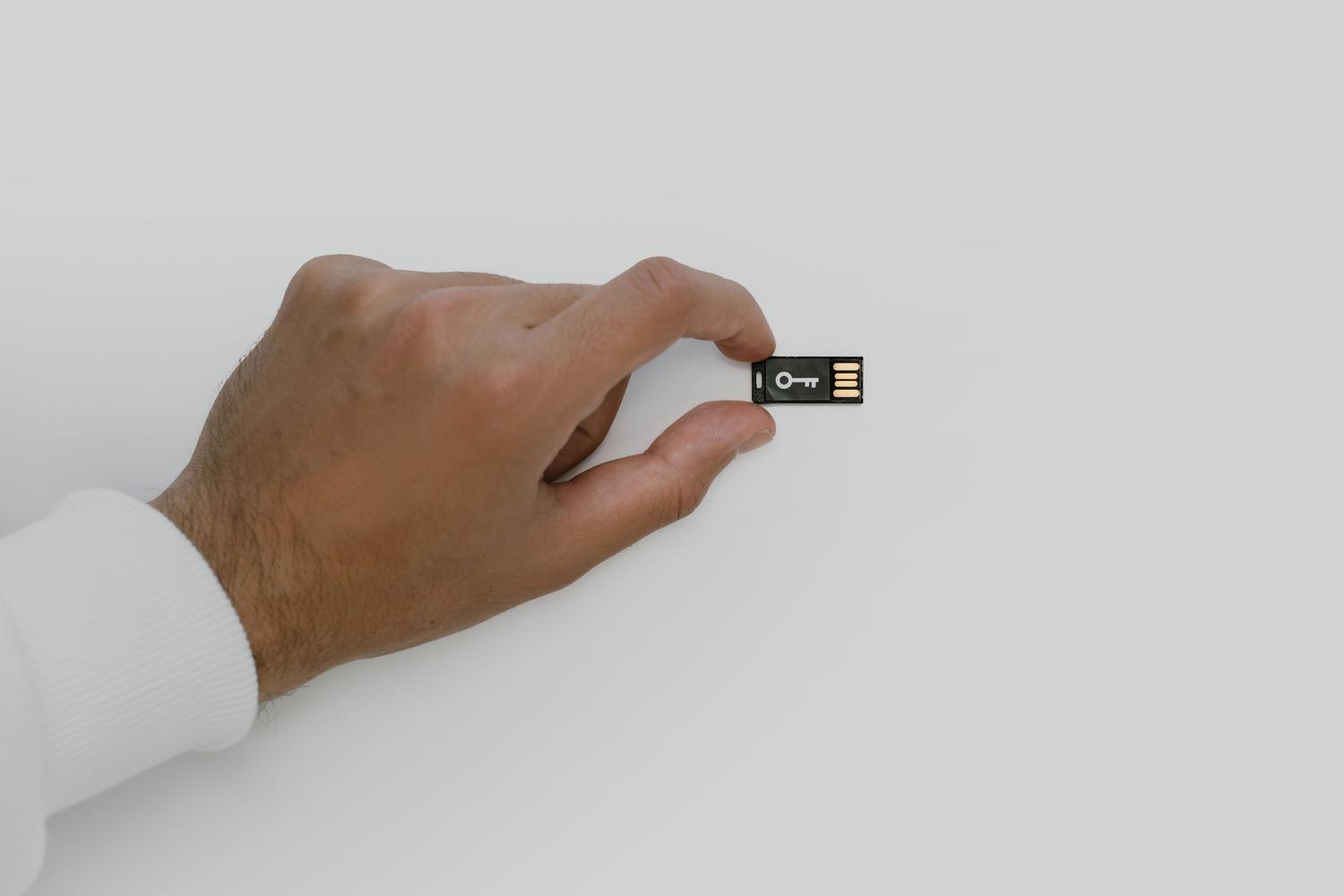
When your computer tells you that the disk is in RAW format , it means the partition table is corrupted. This happens a lot when we have the habit of throwing USB drives out of the port without using the safe eject option. If you don't have important data, formatting from Disk Management is the quick solution; if you do, tools like TestDisk can help you recover the partition.
Another common problem is the 4GB file size limit . If you try to transfer a large movie and Windows tells you the file is too big, it's because your USB drive is formatted as FAT32. To fix this, you need to change the file system to NTFS or exFAT, although you should check that the device you're connecting it to (like an older TV) supports these formats.
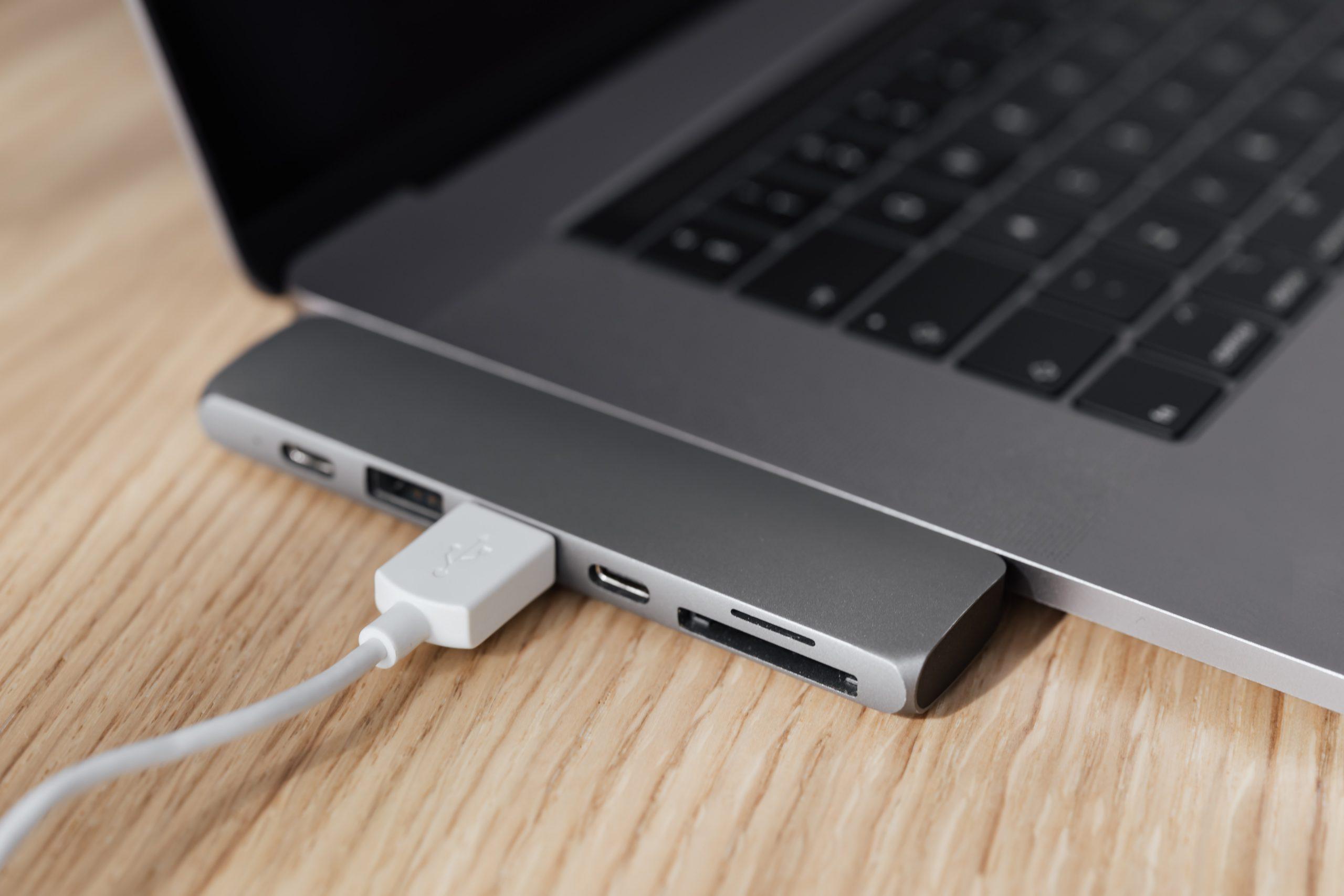
If your computer simply doesn't recognize the device , the problem could be as simple as dirt in the connector or insufficient power. On desktop PCs, it's best to use the rear ports on the motherboard , as the front ones sometimes don't provide enough power. If it still doesn't work, deleting the driver from Device Manager and reinstalling it usually does the trick, although it's also helpful to know what type of USB port you have to rule out incompatibilities.

Malpractice and safety risks

There are common mistakes that shorten the lifespan of your memory. For example, leaving a USB drive plugged in for days without using it consumes unnecessary energy and accelerates wear and tear. Similarly, using a USB drive as your only backup is like playing Russian roulette; you should always have a backup in the cloud or on an internal hard drive, as flash drives can fail without warning.
In terms of security, connecting flash drives of dubious origin is like opening your home to a hacker. There are so-called "USB killers" that can physically fry your motherboard, or Trojans that take control of your system. To avoid this, it's essential to follow a USB device security guide . Likewise, sharing confidential files without encrypting the data with tools like BitLocker or VeraCrypt is an unnecessary risk if the device is lost.

Quick guide to action in case of failures
- Crossmatch: Before giving up on the device, connect it to other computers to find out if the problem is with the USB or your PC.
- Manufacturer's Tools: Brands like Kingston offer specific software to repair formatting errors that Windows cannot fix.
- Preventive Maintenance: Delete obsolete files and update the firmware if the manufacturer allows it, to avoid vulnerabilities and read errors.
- Disk verification: Use the Properties > Tools > Verify function to check for logical errors on the drive.
Maintaining the digital hygiene of our storage devices—avoiding abrupt removal, not relying on them for critical backups, and keeping the file system properly configured—makes all the difference between a USB drive that lasts for years and one that fails us at the worst possible moment. The key is understanding that they are transport tools, not permanent storage, and always prioritizing data security and backups on more robust media.