
- Balances logical maintenance (cleaning, startup, updates) and physical maintenance (dust and ventilation) for stable performance.
- Strengthen security with verifiable backups, up-to-date antivirus, digital hygiene, and reliable Wi-Fi networks.
- Avoid registry cleaners and apply GDPR policies when handling equipment and data.
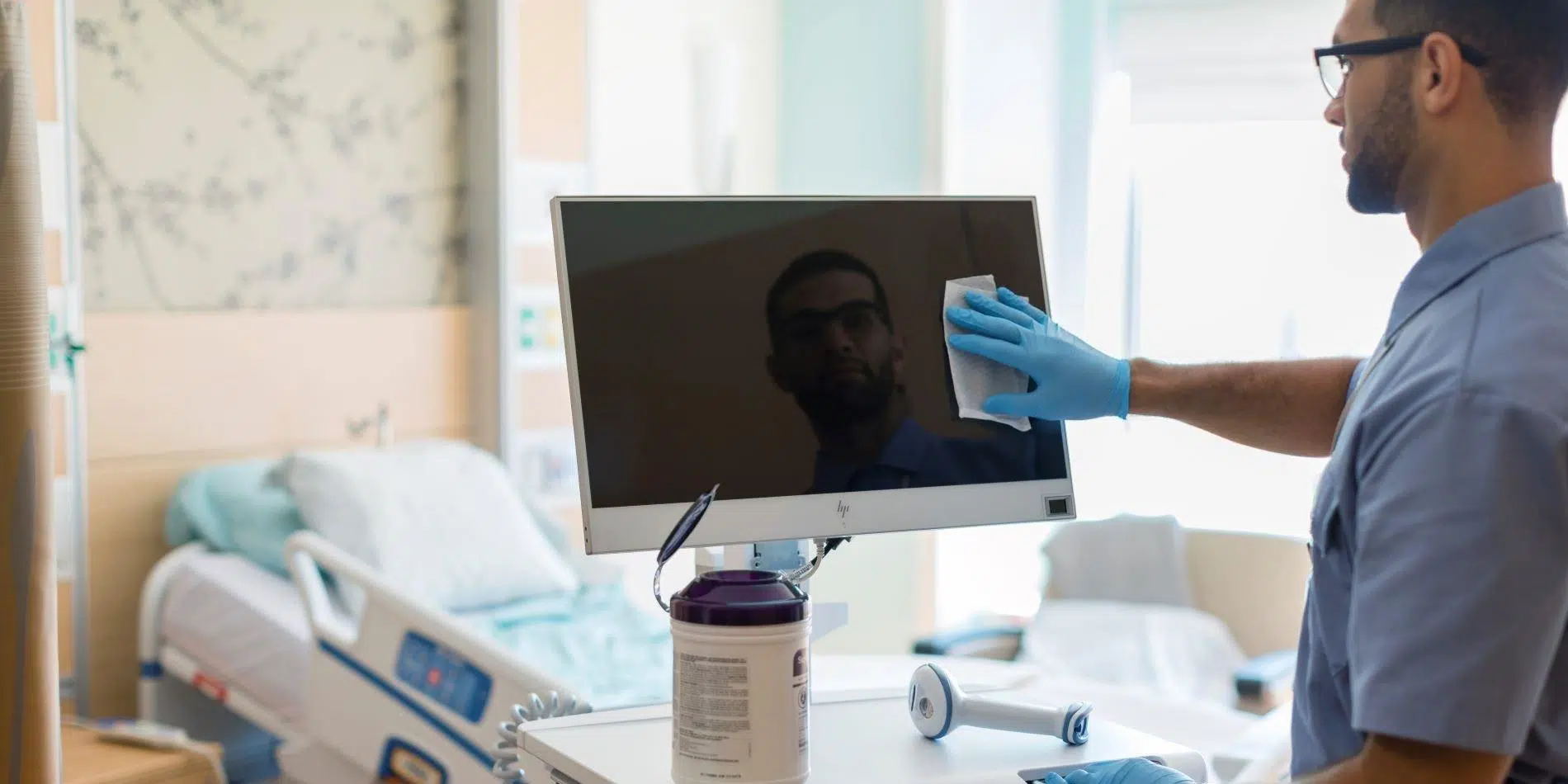
In an organization, keeping equipment in good working order isn't just about replacing parts when they fail: a good preventative maintenance plan avoids breakdowns, improves performance, and extends lifespan. It's advisable to address both the logical aspects (system and software) and the physical ones (dust cleaning and cooling). With regular routines and careful maintenance, your IT infrastructure will operate more reliably, reliably, and quickly.
This article compiles, rewrites, and expands upon proven best practices: disk space freeing, boot management, defragmentation when necessary, updates, backups, anti-malware scanning, digital hygiene (phishing, passwords, and Wi-Fi security), and a guide to cleaning hardware and peripherals. The goal is for you to be able to apply these practices in your company's daily operations with clear procedures and no unnecessary technical jargon.
Logical maintenance and storage cleaning
Start by freeing up space and getting organized. A hard drive with enough free space works better, and Windows responds more smoothly. First of all, empty the Recycle Bin after checking its contents; it's easy to forget files there taking up gigabytes. Doing this regularly provides an immediate and risk-free boost of space.
It removes temporary files and caches generated when installing/uninstalling programs or through normal system use. In Windows, the recommended option is Disk Cleanup; alternatively, there are third-party utilities (for example, CCleaner), although in corporate environments, the built-in system tools are usually preferred for maintaining control and traceability of tasks.
Using Windows Disk Cleanup is simple. Locate it from the Start menu or administrative tools and select what you want to delete: temporary files, caches, downloaded program files, and the Recycle Bin. With just a couple of clicks, you can reclaim space and help your system run more smoothly during demanding tasks.
Regularly review your installed programs. In "Add or Remove Programs," you can sort by size and uninstall anything you no longer use. Less unnecessary software means fewer residual files, fewer background services, and a smaller attack surface, which positively impacts security and boot times.
Defragmentation and SSD drives: when to do it and when not to.
If your computer has a solid-state drive (SSD), you shouldn't defragment it. Windows already performs specific maintenance operations (such as "retrim") for SSDs, and forcing a traditional defragmentation offers no benefits and can cause unnecessary wear. Correctly identifying the drive type prevents unnecessary tasks and helps preserve the long-term performance of your storage.
Control of program startup and loading
Many programs add updaters and assistants that launch with Windows. These are usually not malicious, but they accumulate and slow down startup. Review the list of startup applications and disable anything that isn't critical. You can do this from Task Manager (Startup tab) or, on older systems, with msconfig . However, do not disable services linked to hardware drivers if you are unsure; if you have any doubts, it's best to consult your IT department to avoid problems and loss of functionality.
Less is more: try not to open more applications than necessary at once, especially if your computer has limited resources. Maintaining a reasonable workload reduces memory consumption and frees up CPU, allowing your computer to handle key tasks more smoothly. In general, it's best to prioritize essential tasks and close anything that isn't useful at the moment, particularly when processing critical operations or those with deadlines.
A simple gesture with a big impact: restart your computer regularly. A restart clears memory, closes stray processes, and applies pending changes after updates. In environments with many hours of continuous use, setting up a scheduled weekly restart keeps the system in a more stable and predictable state.
System and regular software updates
Applying operating system and critical application updates is one of the best defenses. Patches fix bugs, close vulnerabilities, and improve compatibility and stability. Pay special attention to exposed software (browsers, plugins, frameworks) and to what is used daily in the company. Even obsolete technologies, like Flash, illustrate this point: they were heavily attacked in their time, and today's equivalent components should be kept in their latest compatible version.
Don't forget drivers and firmware. You can use Windows tools or manufacturer utilities for graphics cards, chipsets, BIOS/UEFI, etc. Updating drivers judiciously fixes bugs and improves stability, although in production it's advisable to validate before mass deployment. A phased approach (pilot and deployment) reduces risks and allows you to measure the impact on system performance.

Backups: frequency and scope
Perform regular backups. If you work with sensitive or critical data, do so at least weekly; in other scenarios, monthly backups may suffice. In practical terms, it's usually preferable to back up only data and documents, and maintain a procedure for reinstalling Windows and applications in case of disaster, to restore the system to its "new state." This strategy saves space and reduces recovery time in the event of incidents.
For backups, use the Windows backup tool, manufacturer solutions, or third-party tools; ideally, use a dedicated external drive or a corporate cloud service. Verify that backups complete and, crucially, that you can restore them. Without recovery testing, a backup plan isn't truly validated or audited.
Malware protection: antivirus and anti-spyware
Viruses are only part of the problem. Malware includes Trojans, worms, rootkits, and ransomware, among others. Keep your antivirus software up to date and schedule regular full scans. Additionally, perform spot scans after observing unusual behavior or before/after sensitive installations, and use appropriate tools when necessary. In enterprise suites (for example, endpoint solutions like Panda Endpoint), you can launch a deep scan from the antivirus module to cover all critical system areas.
Reinforce your protection with anti-spyware tools when appropriate. This type of malicious software seeks to collect user data to serve advertising or steal information. There are free utilities, such as Adaware, that can supplement your protection and perform regular cleanups. Schedule weekly scans if you suspect adware or unwanted toolbars, and verify that your company's policy allows these tools to maintain consistency and compliance.
Digital hygiene: phishing, passwords and Wi-Fi
Be wary of emails that ask you to update your information or enter credentials on websites outside your organization's domain. Double-check spelling, senders, and URLs; if in doubt, contact them through another channel. As a specific practice, in university settings, it's recommended to connect only to official networks like eduroam and not enter passwords on sites outside of verified domains (for example, at ULPGC, the domain ending in .ulpgc.es ).
Don't reuse the same password for email, social media, banking, or corporate tools. Use strong passwords and, even better, a password manager that allows you to generate and store unique credentials. Whenever possible, enable two-factor authentication. With these measures in place, the theft of one account won't compromise the rest, and you'll minimize the impact of data breaches.
On wireless networks, opt for WPA2 or, better yet, WPA3, disable WPS, and segment by VLAN when necessary. If you're out of the office, prioritize trusted networks or those with a corporate VPN. On campuses or at institutions, connect to the official network (such as eduroam), avoiding SSIDs with similar names. Verify certificates and warn users to reduce the risk of malicious access points.
Physical cleaning of the equipment: step-by-step guide
Dirt blocks vents, reduces airflow, and raises temperatures. The first clue is seeing dust in the ventilation openings. Simply wiping the outside isn't enough: a thorough internal cleaning is recommended periodically. First, turn off your PC and disconnect the power and peripherals. If possible, work in a well-ventilated area, wear a mask if you're sensitive to dust, and open a window to disperse airborne particles.
Open the chassis and remove the filters.
Remove the side panels by unscrewing the rear screws and set them aside in a safe place. Many laptops have dust filters on the base or front: remove them and wash them with water, let them dry, and avoid using harsh cleaning products. Keeping the filters clean helps air flow freely because dust doesn't accumulate on the heatsinks and fans.
Blow away the dust with compressed air or a blower
Take the chassis outside if possible. Use compressed air or an electric blower to remove dust from fans, radiators, power supplies, and hard-to-reach areas of the chassis. Make several short passes and, very importantly, hold the fan blades to prevent them from spinning at full speed. You can use cotton swabs or microfiber swabs for tight spaces, avoiding contact with components that are damp or contain products that leave conductive residue.
Panel cleaning and closing
The sides, front, and top of the chassis don't contain any electronics, so you can use slightly damp wipes and then dry them with paper towels. When you're finished, reinstall any removed components (if you removed a graphics card for better cleaning, for example) and replace the side panels. Repeating this routine once or twice a year maintains airflow and reduces the risk of overheating.
Peripherals: keyboard, mouse, and monitor
For the keyboard, a blower or compressed air helps to remove lint and dust between the keys. Then, spray a microfiber cloth with isopropyl alcohol and rub gently. It evaporates quickly and removes fingerprints better than soap and water. Use the same process for the mouse: first dust, then wipe with isopropyl alcohol, being careful not to soak areas with sensors or seals.
The monitor, always unplugged, should be cleaned with a microfiber cloth dampened with water (or a specific screen cleaning solution). Wipe gently and dry if necessary. Avoid cleaners containing ammonia or other chemicals that could damage the screen's coating. After reconnecting everything, verify that the peripherals are working and take the opportunity to check the Security section in Windows: in Settings > Update & Security > Windows Security > Device performance and health, you can check basic system health indicators.
Ventilation and temperature: why they matter
Heat is the enemy of performance. When temperatures rise, the CPU and GPU may reduce their frequency to protect themselves (throttling). The result is a noticeable drop in performance during demanding tasks. Cleaning filters and heatsinks, and ensuring a chassis with good airflow, are the solution. Add to this an annual maintenance check (or semi-annual if there's a lot of dust) and you'll keep thermal spikes that cause slowdowns and unexpected shutdowns under control.
Good practices and myths to dispel
It's tempting to install "miracle" registry cleaners or so-called optimization tools. In practice, these programs can cause conflicts and damage critical system components. Microsoft's own community advises against touching the registry unless absolutely necessary and with the necessary expertise. If you're looking to optimize, focus on what it actually does: freeing up space, managing startup, updating, and maintaining a consistent security policy; this will help you avoid problems and preserve the integrity of your operating system.
Privacy and data protection in maintenance
Maintenance also involves processing personal information. Ensure you comply with the GDPR: implement technical and organizational measures to preserve confidentiality, integrity, and availability; do not transfer data to third parties except when legally required or contractually necessary; and facilitate the rights of access, rectification, objection, erasure, and portability. Furthermore, establish policies that prevent the processing of data of children under 14 without authorization.
Ensure that internal procedures document who handles data equipment, when, and how, and that contact channels exist for exercising rights and reporting incidents. This "non-technical" layer is essential for responsible management and protects you against audits and regulatory requirements.
With these guidelines, you now have a practical plan: clean up disk space and optimize startup to ensure Windows runs smoothly, update your system and applications responsibly, perform verifiable backups, scan for malware, and maintain strict digital hygiene. Complete the plan with regular physical cleaning to keep dust and heat at bay, and avoid "optimizers" that promise miracles. All of this, aligned with GDPR and best corporate practices, results in more reliable, secure, and long-lasting systems.

Table of Contents
- 1 Logical maintenance and storage cleaning
- 2 Defragmentation and SSD drives: when to do it and when not to.
- 3 Control of program startup and loading
- 4 System and regular software updates
- 5 Backups: frequency and scope
- 6 Malware protection: antivirus and anti-spyware
- 7 Digital hygiene: phishing, passwords and Wi-Fi
- 8 Physical cleaning of the equipment: step-by-step guide
- 9 Peripherals: keyboard, mouse, and monitor
- 10 Ventilation and temperature: why they matter
- 11 Good practices and myths to dispel
- 12 Privacy and data protection in maintenance